

- Introduction
- 1. Local Environment (XAMPP) Troubleshooting
- Fixing the Dreaded "InnoDB Crash" (MySQL Won't Start)
- Increasing PHP Upload Limits
- Setting Up Custom Virtual Hosts
- 2. Essential SQL Queries for WordPress
- Resetting an Admin Password
- Updating Site URLs After a Migration
- Database Cleanup: Deleting Post Revisions
- Bulk Search and Replace (HTTP to HTTPS)
- Clearing Transient Caches
- Conclusion
Introduction
Setting up a local development environment is a critical first step for any WordPress developer. However, dealing with local server crashes, upload limits, and database migrations can quickly turn a productive coding session into a troubleshooting nightmare.
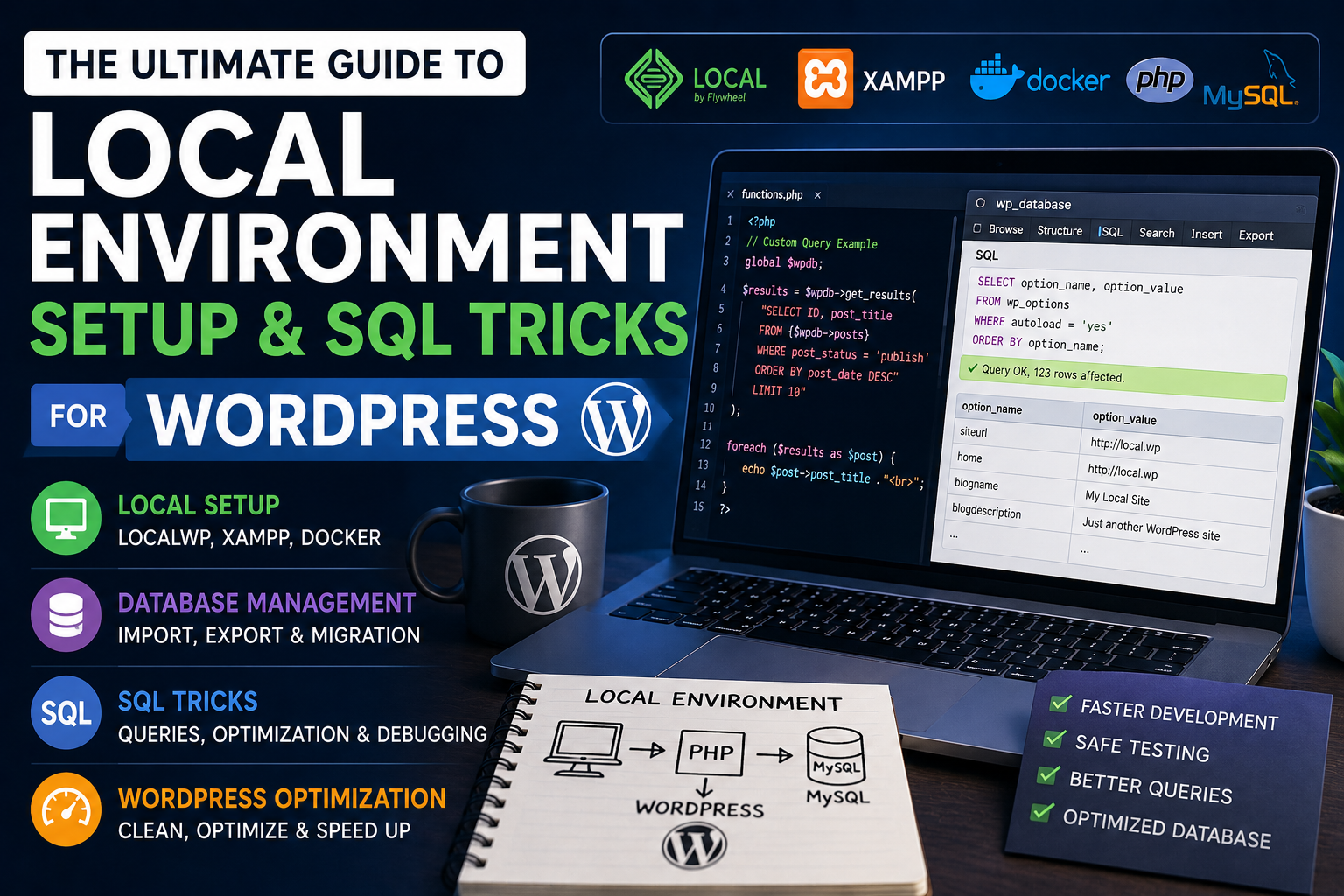
In this guide, we will cover the most effective tricks for managing your local XAMPP environment and the most powerful SQL queries you can use to interact with your WordPress database directly.
1. Local Environment (XAMPP) Troubleshooting
Fixing the Dreaded “InnoDB Crash” (MySQL Won’t Start)
One of the most common issues with XAMPP is a corrupted MySQL tablespace caused by an unexpected shutdown. If your MySQL refuses to start, follow these steps to recover it:
- Stop MySQL in your XAMPP Control Panel.
- Navigate to your data directory:
C:\xampp\mysql\data - Locate the redo log files and rename them (e.g.,
ib_logfile0toib_logfile0.bakandib_logfile1toib_logfile1.bak). - Restart MySQL. It will automatically regenerate fresh, uncorrupted logs.
Pro Tip: If you receive a fatal error regarding tablespace bounds, you may need to open
C:\xampp\mysql\bin\my.iniand addinnodb_force_recovery = 1under the[mysqld]section. This forces the server to start so you can immediately export your databases via phpMyAdmin before reinstalling MySQL.
Increasing PHP Upload Limits
By default, XAMPP restricts file uploads to a mere 2MB, which is not enough for modern WordPress themes or premium plugins.
To fix this, locate your php.ini file (C:\xampp\php\php.ini) and update these specific directives:
inimemory_limit = 256Mupload_max_filesize = 128Mpost_max_size = 128Mmax_execution_time = 300
Don’t forget to restart Apache after saving your changes!
Setting Up Custom Virtual Hosts
Instead of accessing your local sites via http://localhost/wp, you can map them to professional, custom domains like http://my-theme.local.
- Open
C:\Windows\System32\drivers\etc\hostsas Administrator and add:127.0.0.1 my-theme.local - Next, open
C:\xampp\apache\conf\extra\httpd-vhosts.confand append:apache<VirtualHost *:80> DocumentRoot “C:/xampp/htdocs/wp” ServerName my-theme.local</VirtualHost> - Restart Apache to finalize the custom domain.
2. Essential SQL Queries for WordPress
Often, executing direct SQL queries via phpMyAdmin or a database client is significantly faster than writing a PHP script or using a plugin.
(Note: Always backup your database before running bulk updates. The queries below assume your table prefix is wp_.)
Resetting an Admin Password
If you ever get locked out of your local installation or a client site, you can instantly reset the password using the MD5() function:
sqlUPDATE wp_users SET user_pass = MD5('your_new_password') WHERE user_login = 'admin';
Updating Site URLs After a Migration
When migrating a site from a local server to a live environment, you must update the core URL options:
sqlUPDATE wp_options SET option_value = 'https://new-live-site.com' WHERE option_name IN ('siteurl', 'home');
Database Cleanup: Deleting Post Revisions
Post revisions are fantastic for content editors, but they bloat databases incredibly fast. To safely delete all revisions and their orphaned metadata, run:
sqlDELETE a,b,c FROM wp_posts a LEFT JOIN wp_term_relationships b ON (a.ID = b.object_id) LEFT JOIN wp_postmeta c ON (a.ID = c.post_id) WHERE a.post_type = 'revision';
Bulk Search and Replace (HTTP to HTTPS)
If you’ve recently installed an SSL certificate and are facing mixed content warnings, use this query to replace old insecure URLs within your post content:
sqlUPDATE wp_posts SET post_content = replace(post_content, 'http://your-site.com', 'https://your-site.com');
Clearing Transient Caches
Transients act as a temporary cache in the database. If a plugin is acting weird or an API is failing to update, deleting transients can provide a clean slate:
sqlDELETE FROM wp_options WHERE option_name LIKE ('\_transient\_%');DELETE FROM wp_options WHERE option_name LIKE ('\_site\_transient\_%');
Conclusion
By mastering your local XAMPP environment and understanding how to manipulate the WordPress database directly via SQL, you can drastically reduce the time spent on troubleshooting and focus more on building incredible themes and plugins.
